

Home Assistant Watcher for Omarchy
Home Assistant updates in your Omarchy bar — Core, OS, add-ons and device firmware, watched from a bar badge and installed with one click.
About
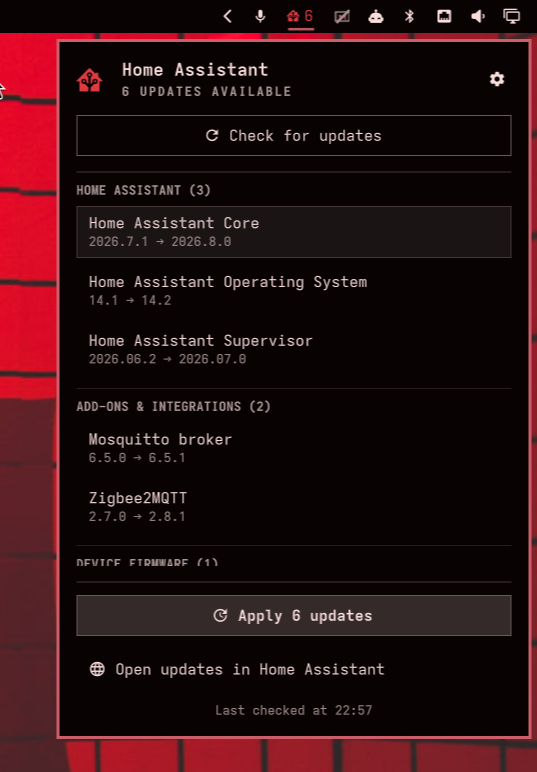
A little house lives in your bar. It stays a muted foreground while everything in your Home Assistant is current, and turns the theme's attention colour with a count the moment something is published — a Core release, an OS image, an add-on, a Zigbee firmware. The popup lists what's pending, grouped and versioned, and one button applies it all: add-ons and firmware first, then Supervisor, Core and OS, so nothing saws off the branch it's sitting on.
Everything goes through Home Assistant's REST API with a long-lived token — no WebSocket, no custom integration on the HA side. Installing Core or OS restarts the API mid-call, so the widget watches the service call and the update.* entity together, and treats a proxy's 504 as a dropped connection rather than a failed update. The Omarchy port of Home Assistant Watcher for the COSMIC panel.
Highlights
- Only installable updates count — the badge is always something you can act on
- Apply all in a safe order — add-ons and firmware, then Supervisor → Core → OS, polling through the restarts
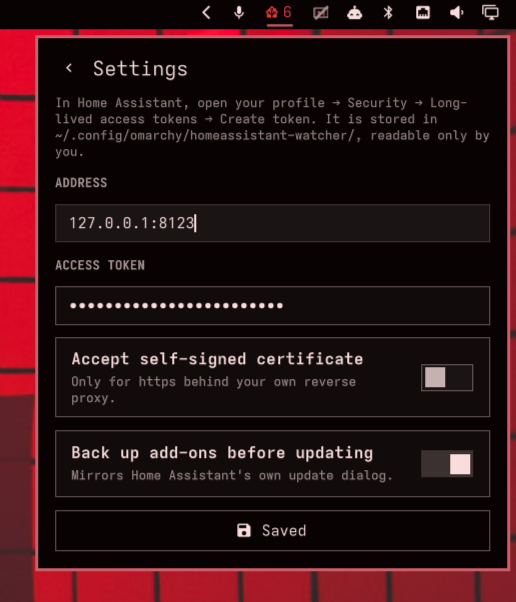
- Backup first — optionally snapshots add-ons that support it, on by default
- Info-only updates can't get stuck — listed separately, each with a dismiss that mirrors HA's own skip
- Token kept out of
shell.json— stored0600, passed to curl with-K - Being away is not an error — off the home network it shows “not reachable — retrying” and recovers by itself
Install
$ omarchy plugin add https://github.com/davidboulay/omarchy-homeassistant-watcher.git --enable
Then click the house → ⚙ Settings and enter your Home Assistant address and a long-lived access token.
More apps
VPN Switcher
One bar icon for every VPN you have
 omarchy
Maintainer Inbox
Issues and PRs waiting on you, in the bar
omarchyMulti-Monitor Workspaces
Workspaces 1–9 on every monitor
omarchyScreensaver Lock
Dismiss the screensaver, get the lock screen
omarchyWi-Fi Login Popup
Hotel and airport Wi-Fi sign-in, automatically
 omarchy
TrueNAS Apps Watcher for Omarchy
TrueNAS app updates in the Omarchy bar
 more
more
Clippy
Clipboard history in a strip of tiles
 cosmic
CosmicShot
Capture, annotate, share — CleanShot-style
 more
more
Space Control
Hide the mail spaces you never use
 cosmic
CosmicUpdate
Pending updates, right in the panel
 cosmic
TrueNAS Apps Watcher
Your NAS updates, from the desktop
 cosmic
Home Assistant Watcher
Home Assistant updates, in the panel
 cosmic
CosmicDNS
One-click DNS switching from the panel
 more
more
OpenKraken
NZXT Kraken control for Linux
 more
more
Lightspeed X-Series MCP
Ask Claude about your Lightspeed stores